
Building a Self-Hosted ngrok Alternative with sish and LDAP Authentication
Ever needed to share your local development server with a colleague or client? Services like ngrok and localhost.run solve this beautifully — but they come with limitations. Free tiers restrict usage, paid plans add up, and routing your traffic through third-party infrastructure isn’t always ideal.
After going through several iterations, I built a self-hosted solution that gives our development team ngrok-like functionality with zero ongoing costs and full control. Here’s how it works and how you can build one too.
The Problem
Our backend developers frequently need to share their local APIs with frontend developers and external clients. The typical solutions each have drawbacks:
- VPN: Requires everyone to be connected, complex for external clients
- Deploy to staging: Slow iteration cycle, clutters the environment
- ngrok/localhost.run: Third-party dependency, costs scale with team size
What we wanted: a developer runs one command, gets a public URL, shares it. Simple as that.
The Evolution
Attempt 1: Static SSH Tunnels
My first approach was straightforward — a container running sshd with one port per developer:
alice  → port 1000 → alice.tunnel.example.com
bob    → port 1001 → bob.tunnel.example.com
carol  → port 1002 → carol.tunnel.example.com
Each developer had their SSH key baked into the container’s authorized_keys with permitlisten restrictions so they could only bind their assigned port. Nginx Proxy Manager routed each subdomain to the corresponding port.
It worked, but had limitations:
- Adding users meant editing files and restarting containers
- Fixed subdomains — no flexibility
- One tunnel per person
Attempt 2: sish + LDAP
Enter sish — an open-source ngrok alternative that handles all the complexity of dynamic subdomain routing. Combined with our existing LDAP infrastructure, we got exactly what we needed.
The Final Architecture
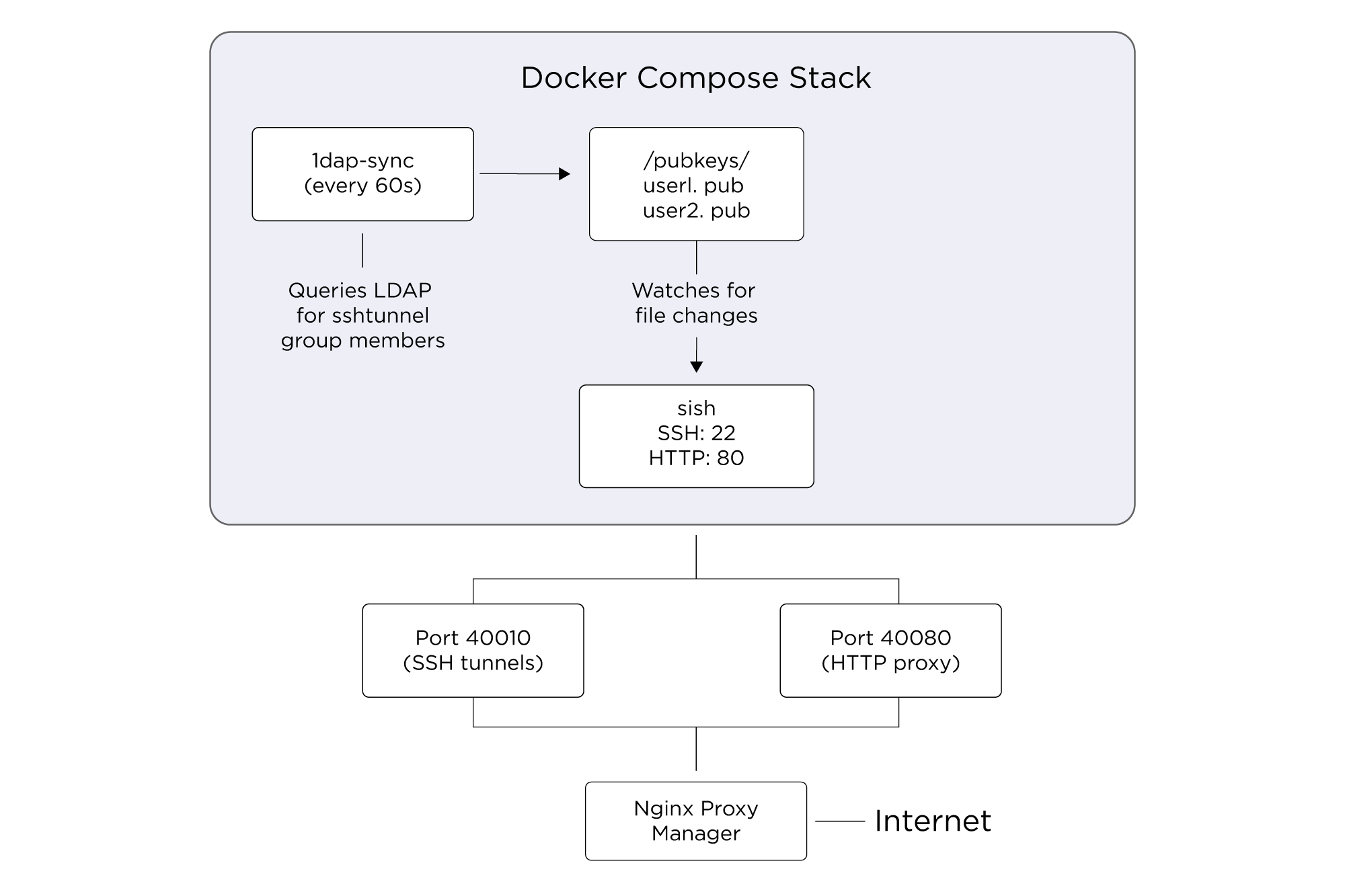
Implementation
docker-compose.yml
services:
  sish:
    image: antoniomika/sish:latest
    container_name: sish
    restart: unless-stopped
    ports:
      - "40010:22"
      - "40080:80"
    volumes:
      - ./volumes/keys:/keys
      - ./volumes/pubkeys:/pubkeys
    command:
      - "--ssh-address=:22"
      - "--http-address=:80"
      - "--https=false"
      - "--authentication=true"
      - "--authentication-keys-directory=/pubkeys"
      - "--private-keys-directory=/keys"
      - "--bind-random-subdomains=true"
      - "--bind-random-subdomains-length=6"
      - "--domain=tunnel.example.com"
      - "--banned-subdomains=localhost,admin,www"
      - "--log-to-client=true"
      - "--verify-dns=false"
      - "--proxy-ssl-termination=true"

  ldap-sync:
    build:
      context: .
      dockerfile: Dockerfile.ldap-sync
    container_name: ldap-sync
    restart: unless-stopped
    volumes:
      - ./volumes/pubkeys:/pubkeys
    environment:
      - LDAP_URI=ldaps://ldap.example.com
      - LDAP_BASE=dc=example,dc=com
      - LDAP_GROUP=sshTunnel
      - SYNC_INTERVAL=60
The LDAP Sync Script
The magic happens in a simple bash script that runs every 60 seconds:
#!/bin/bash

sync_keys() {
    echo "[$(date)] Starting LDAP sync..."

    # Get members of the sshTunnel group
    members=$(ldapsearch -x -LLL -H "$LDAP_URI" \
        -b "ou=Group,$LDAP_BASE" \
        "(&(objectClass=posixGroup)(cn=$LDAP_GROUP))" \
        memberUid 2>/dev/null | \
        awk '/^memberUid:/ {print $2}')

    if [ -z "$members" ]; then
        echo "[$(date)] No members found in group $LDAP_GROUP"
        rm -f "$PUBKEYS_DIR"/*.pub 2>/dev/null
        return
    fi

    current_users=""

    # For each member, fetch their SSH key
    for uid in $members; do
        key=$(ldapsearch -x -LLL -H "$LDAP_URI" \
            -b "ou=People,$LDAP_BASE" \
            "(&(uid=$uid)(objectClass=ldapPublicKey))" \
            sshPublicKey 2>/dev/null | \
            # ... parse key from LDAP response
        )

        if [ -n "$key" ]; then
            echo "$key" > "$PUBKEYS_DIR/${uid}.pub"
            current_users="$current_users $uid"
        fi
    done

    # Remove keys for users no longer in group
    for keyfile in "$PUBKEYS_DIR"/*.pub; do
        [ -f "$keyfile" ] || continue
        username=$(basename "$keyfile" .pub)
        if ! echo "$current_users" | grep -qw "$username"; then
            rm -f "$keyfile"
        fi
    done
}

# Initial sync, then loop forever
sync_keys
while true; do
    sleep "$SYNC_INTERVAL"
    sync_keys
done
sish watches the /pubkeys directory and automatically picks up changes — no restart required.
Nginx Proxy Manager Configuration
Nginx Proxy Manager handles SSL termination and wildcard routing:
- Domain: *.tunnel.example.com
- Forward to: 192.168.x.x:40080
- SSL: Let’s Encrypt wildcard cert
- WebSocket Support: Enabled
Firewall
Only one port needs to be exposed externally — the SSH port (40010 in my case). HTTP traffic comes through Nginx Proxy Manager which is already public.
User Experience
For developers, it couldn’t be simpler:
$ ssh -R 80:localhost:3000 tunnel.example.com -p 40010

Press Ctrl-C to close the session.
Starting SSH Forwarding service for http:80.
Listening on: https://x7k2pm.tunnel.example.com
That’s it. They share the URL, frontend devs or clients open it in their browser, traffic flows to the developer’s laptop.
User Management
Adding a new developer:
- Ensure they have sshPublicKey attribute in LDAP
- Add them to the sshTunnel group
- Done — they can connect within 60 seconds
Removing access:
- Remove them from the sshTunnel group
- Done — their key is purged on next sync
No config files to edit, no containers to restart, no PRs to merge.
Gotchas
A few things I learned along the way:
Don’t use -N with SSH: The -N flag (no remote command) suppresses output, which means you won’t see your assigned URL. Just run the command without it.
sish has its own SSH server: It doesn’t use system sshd, so traditional PAM/SSSD integration won’t work. You need to provide keys via the watched directory.
Random subdomains by default: sish assigns random subdomains, which is actually great for security — no URL guessing. Developers just need to share the URL they receive.
GatewayPorts: If you’re building a pure-SSH solution (without sish), remember that SSH binds to localhost by default. You need GatewayPorts yes in sshd_config to bind to all interfaces.
Conclusion
Total infrastructure cost: one Docker host we already had running. Time to implement: about half a day including all the iterations. The result is a zero-cost, self-hosted tunneling solution that scales with our LDAP directory and requires zero manual intervention for user management.
The combination of sish for tunnel management and a simple LDAP sync script gives us all the functionality of commercial tunneling services while keeping everything in-house. If you’re running LDAP (or any central user directory), this pattern should work equally well for you.